

How to Build Your Own PC: Complete Guide to Choosing the Right Components
How to Build Your Own PC: Complete Guide to Choosing the Right Components
Content
Building your own PC can seem complicated at first.
You need to choose a processor, motherboard, RAM, graphics card, storage, power supply and case, while making sure that all the components are compatible.
The good news is that building a PC becomes much easier once you understand what each component does.
Building your own computer can also give you more control over performance, upgradeability and your budget.
In this guide, we'll explain how to choose the right PC components and build a balanced computer for gaming, work or content creation in 2026.
Why Build Your Own PC?
There are several advantages to building your own PC.
Better Control Over Your Budget
You can decide exactly where your money goes.
For example, a gaming PC may benefit more from spending extra money on the GPU rather than buying an unnecessarily expensive CPU.
Easier Upgrades
A desktop PC can usually be upgraded more easily than a laptop.
You can replace or add:
- RAM
- SSD
- GPU
- CPU
- Power supply
- Cooling
- Storage
depending on the motherboard and system compatibility.
Better Performance
Choosing your own components allows you to create a system specifically designed for your workload.
Learning Experience
Building a PC teaches you how computer hardware works and makes future upgrades and troubleshooting easier.
The Main PC Components
A typical desktop PC consists of:
- CPU
- Motherboard
- RAM
- GPU
- SSD
- Power Supply
- PC Case
- CPU Cooler
- Operating System
Each component has a different role.
1. Choosing the CPU
The CPU is the main processor of the computer.
It handles general computing tasks and works together with the GPU to run games and applications.
Popular CPU platforms include Intel and AMD.
Intel
Intel offers processors across different performance levels.
For a gaming or productivity PC, you may encounter:
- Core 5
- Core 7
- Core 9
- Core Ultra desktop processors on supported platforms
AMD Ryzen
AMD Ryzen processors are also popular for gaming and productivity.
Common categories include:
- Ryzen 5
- Ryzen 7
- Ryzen 9
The exact model matters much more than the product family.
For example, two Ryzen 7 processors from different generations can have very different performance levels.
CPU for Gaming
For gaming, you don't necessarily need the most expensive processor.
A strong mid-range CPU paired with a powerful GPU can often provide better overall gaming value.
When choosing a gaming CPU, consider:
- Gaming performance
- Number of cores
- Platform longevity
- Power consumption
- Cooling requirements
- Price
CPU for Productivity
If you're building a PC for:
- Video editing
- 3D rendering
- Programming
- Virtual machines
- Professional applications
you may benefit from a CPU with more cores and higher sustained performance.
2. Choosing the Motherboard
The motherboard connects all of your components together.
It determines which CPUs, RAM, storage and expansion devices your PC can support.
When choosing a motherboard, check:
- CPU socket
- Chipset
- RAM type
- Number of RAM slots
- M.2 slots
- PCIe slots
- USB ports
- Networking
- Wi-Fi
- BIOS support
Motherboard Compatibility
The CPU and motherboard must use compatible sockets.
You should always check the manufacturer's compatibility list before purchasing.
For example, a motherboard designed for one CPU platform may not support another platform even if the components physically look similar.
3. Choosing RAM
RAM affects how much information your computer can keep readily available while applications are running.
For a modern PC in 2026:
16GB
Good for:
- Office work
- Studying
- General productivity
- Basic gaming
32GB
Recommended for:
- Gaming
- Streaming
- Content creation
- Programming
- Heavy multitasking
64GB+
Useful for:
- Professional video editing
- 3D rendering
- Virtual machines
- Engineering applications
- Specialized workloads
For a new gaming PC, 32GB can be an excellent target.
DDR4 vs DDR5
When building a new PC, you'll need to decide which memory generation your platform supports.
DDR5 is the newer memory standard and is widely used in modern platforms.
DDR4 remains useful for compatible systems and can sometimes offer better value when upgrading an existing PC.
You cannot simply install DDR5 into a DDR4 motherboard.
The motherboard must support the correct memory generation.
4. Choosing the Graphics Card
For a gaming PC, the GPU is one of the most important components.
The graphics card determines how well your PC can render games at a specific resolution and quality level.
In 2026, NVIDIA's RTX 50 Series provides several options for different budgets.
RTX 5060
A strong starting point for mainstream gaming.
It can be suitable for users targeting Full HD and selected higher-resolution gaming depending on the game and settings.
RTX 5070
A stronger option for users who want more performance and higher settings.
RTX 5070 Ti
Designed for higher-performance gaming and demanding workloads.
RTX 5080
A high-end option for enthusiasts who want very high gaming performance.
Choose the GPU Based on Your Monitor
Your monitor resolution should influence your GPU choice.
1080p
A mid-range GPU can provide excellent performance.
1440p
A stronger GPU becomes more important, especially at high refresh rates.
4K
High-end GPUs are generally recommended for demanding modern games at high settings.
Don't buy an extremely powerful GPU if you're using a basic 60Hz 1080p monitor unless you have plans to upgrade the display.
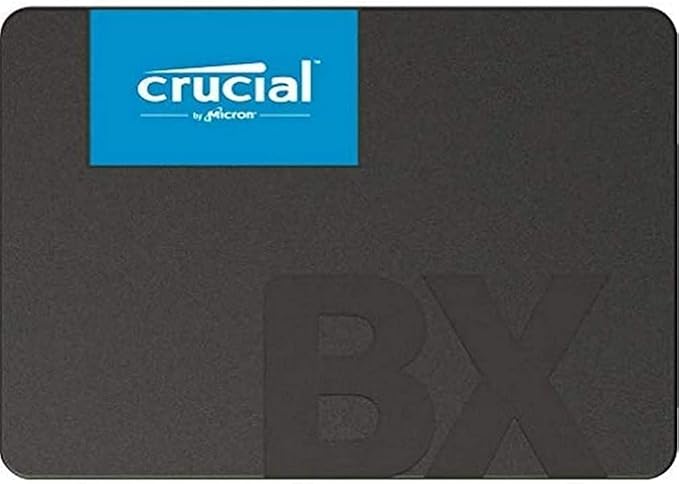
5. Choosing an SSD
An SSD should be considered essential for a modern PC.
For a new gaming PC, NVMe storage is generally the best choice.
512GB
Good starting point for:
- Windows
- Applications
- A few games
- General use
1TB
Recommended for most gaming PCs.
Modern games can be very large, so 1TB provides much more flexibility.
2TB+
Recommended for:
- Large game libraries
- Video editing
- Content creation
- Professional workloads
PCIe 4.0 vs PCIe 5.0 SSD
PCIe 4.0 NVMe SSDs provide excellent performance and value.
PCIe 5.0 SSDs offer even higher theoretical speeds, but they are not necessary for most gaming PCs.
If your budget is limited, investing more in the GPU is often a better gaming upgrade than moving from a good PCIe 4.0 SSD to an expensive PCIe 5.0 model.
6. Choosing the Power Supply
The power supply, or PSU, provides electricity to your components.
It is one of the most important components for system stability.
Never choose a PSU purely because it is cheap.
Look for:
- Appropriate wattage
- Good efficiency
- Reliable manufacturer
- Proper protections
- Modern connectors
- Appropriate certification
How Much PSU Wattage Do You Need?
The required wattage depends on your CPU and GPU.
A mid-range gaming PC may work well with a quality 650W–750W PSU.
A high-end system may require 850W or more.
Always check the recommended PSU requirements of your graphics card and leave some headroom.
80 PLUS Certification
You may see labels such as:
- 80 PLUS Bronze
- 80 PLUS Gold
- 80 PLUS Platinum
These indicate efficiency levels under specified testing conditions.
Efficiency is important, but certification alone does not tell you everything about PSU quality.
Choose a reputable model with appropriate protections and reviews.
7. Choosing the PC Case
The case houses your components and affects airflow, cooling and compatibility.
When choosing a case, check:
- Motherboard compatibility
- GPU length
- CPU cooler height
- Radiator support
- Number of fans
- Front-panel connectivity
- Cable management
Airflow Is Important
A good PC case should provide adequate airflow.
Ideally, you want cool air entering the case and hot air leaving it.
Poor airflow can cause higher component temperatures and potentially reduce sustained performance.
8. Choosing CPU Cooling
The CPU needs a cooling solution.
Depending on the processor, you can choose between:
- Air cooler
- AIO liquid cooler
Air Cooling
Air coolers are generally:
- Reliable
- Simple
- Cost-effective
- Easy to maintain
AIO Liquid Cooling
AIO coolers can provide strong cooling performance and a clean appearance.
They can be useful for high-performance CPUs, but they are more complex than traditional air cooling.
Choose the cooler based on the CPU's thermal requirements rather than appearance alone.
9. Case Fans
Case fans help move air through the system.
A typical airflow setup can include:
- Front intake fans
- Rear exhaust fan
- Top exhaust fans
The exact configuration depends on the case.
More fans do not automatically mean better cooling.
Airflow direction and fan placement matter.
PC Compatibility Checklist
Before buying your components, check:
CPU + Motherboard
Make sure the socket and chipset are compatible.
RAM + Motherboard
Check DDR generation and supported memory speeds.
GPU + Case
Check the maximum GPU length.
CPU Cooler + Case
Check cooler height for air coolers or radiator compatibility for liquid coolers.
PSU + GPU
Make sure the PSU has sufficient wattage and the correct power connectors.
SSD + Motherboard
Check the number and type of M.2 slots.
How to Balance Your Budget
One of the biggest mistakes when building a PC is spending too much money on one component while neglecting another.
For a gaming PC, the GPU usually deserves a large portion of the budget.
A balanced build might look like:
GPU → CPU → RAM → SSD → PSU → Cooling → Case
The exact priority depends on your workload.
For a workstation, CPU and RAM may become more important.
Example Gaming PC Configurations
Entry-Level Gaming PC
Consider:
- Modern Ryzen 5 or Core 5 CPU
- 16GB–32GB RAM
- RTX 5060-class GPU
- 1TB NVMe SSD
- Quality 650W PSU
- Air cooling
This type of system can provide excellent Full HD gaming.
Mid-Range Gaming PC
Consider:
- Ryzen 5/7 or Core 5/7
- 32GB RAM
- RTX 5070-class GPU
- 1TB–2TB NVMe SSD
- 750W PSU
- Good air or liquid cooling
This configuration is suitable for higher-resolution gaming and demanding applications.
High-End Gaming PC
Consider:
- High-performance Ryzen 7/9 or Core 7/9
- 32GB–64GB RAM
- RTX 5070 Ti or RTX 5080
- 2TB NVMe SSD
- 850W+ quality PSU
- High-performance cooling
This is aimed at enthusiasts and users who want very high gaming performance.
Gaming PC vs Workstation
Before buying components, determine what the PC will be used for.
A gaming PC prioritizes:
- GPU
- Gaming CPU
- High-speed RAM
- Fast SSD
- High-refresh-rate monitor
A workstation may prioritize:
- CPU cores
- RAM capacity
- Storage capacity
- Professional GPU
- Reliability
Don't build a workstation if you only need a gaming PC.
Should You Buy a Prebuilt PC?
Building your own PC isn't always the cheapest option.
Prebuilt PCs can provide:
- Convenience
- Warranty
- Professional assembly
- Easier support
Building your own PC provides:
- Component selection
- Upgrade flexibility
- More control
- Better understanding of your system
Compare the total price of the components, assembly and warranty before deciding.
Common PC Building Mistakes
Buying an Overpowered CPU
You may not need an expensive CPU for your workload.
Buying a Weak PSU
Never save money by choosing a poor-quality power supply.
Ignoring Cooling
High-performance components need adequate cooling.
Buying Too Little Storage
Modern games and applications can consume hundreds of gigabytes.
Choosing an Expensive Motherboard Without Need
A more expensive motherboard isn't automatically faster.
Choose the features you actually need.
Ignoring Future Upgrades
Think about whether you'll want more RAM, additional storage or a more powerful GPU later.
How to Build Your PC
Once you've selected compatible components, the general assembly process is:
- Install the CPU into the motherboard.
- Install the RAM.
- Install the M.2 NVMe SSD.
- Install the CPU cooler.
- Prepare the PC case.
- Install the motherboard.
- Install the power supply.
- Install the graphics card.
- Connect the power cables.
- Connect front-panel cables.
- Install additional case fans.
- Turn on the system.
- Enter BIOS.
- Check that all components are detected.
- Install Windows.
- Install drivers.
- Update BIOS if necessary.
- Test system stability and temperatures.
Always follow the installation instructions provided with your individual components.
Final Verdict
Building your own PC gives you complete control over your system.
The most important thing is not choosing the most expensive components.
It's building a balanced system where every component makes sense for your workload and budget.
For gaming, prioritize the GPU while maintaining a capable CPU, enough RAM and fast NVMe storage.
For productivity and professional applications, CPU performance, RAM capacity and storage may become more important.
Before purchasing anything, always verify compatibility between the CPU, motherboard, RAM, GPU, SSD, PSU, case and cooling system.
A well-balanced PC will provide better value, easier upgrades and a better overall experience.
Looking for PC components in the UAE? Explore the latest gaming hardware and PC components at Gaming Store UAE and build the PC that fits your performance needs and budget.