

How to Make Your Laptop Faster: RAM, SSD & Cooling
How to Make Your Laptop Faster: RAM, SSD, Cooling & Optimization
Content
Is your laptop becoming slow?
You don't always need to buy a new laptop to improve performance.
A slow laptop can often be improved by upgrading the RAM, replacing an old storage drive, cleaning the cooling system, removing unnecessary software and optimizing Windows.
Whether you're using your laptop for work, studying, gaming or everyday browsing, this guide will show you practical ways to make your laptop faster.
Why Does a Laptop Become Slow?
There isn't always one reason.
A laptop can become slower because of:
- Not enough RAM
- Slow or old storage
- Too many startup applications
- Low free storage space
- Overheating
- Outdated drivers
- Background applications
- Malware
- An aging battery or power settings
- An old processor
Before upgrading anything, it's important to identify what is actually causing the slowdown.
1. Check Your Laptop's RAM
RAM is one of the most important components affecting multitasking performance.
If your laptop doesn't have enough RAM, Windows may rely more heavily on the storage drive, which can make the system feel slower.
8GB RAM
8GB can be enough for:
- Web browsing
- Microsoft Office
- Basic school work
- Light everyday use
However, modern applications and browsers can consume significant amounts of memory.
16GB RAM
For most users, 16GB is an excellent target.
It is suitable for:
- Multitasking
- Office work
- University
- Programming
- Browsing
- Photoshop
- Everyday productivity
32GB RAM
32GB is useful for:
- Video editing
- 3D applications
- Virtual machines
- Heavy multitasking
- Professional workloads
- High-end gaming laptops
If your laptop supports a RAM upgrade, moving from 8GB to 16GB can make a noticeable difference in many workloads.
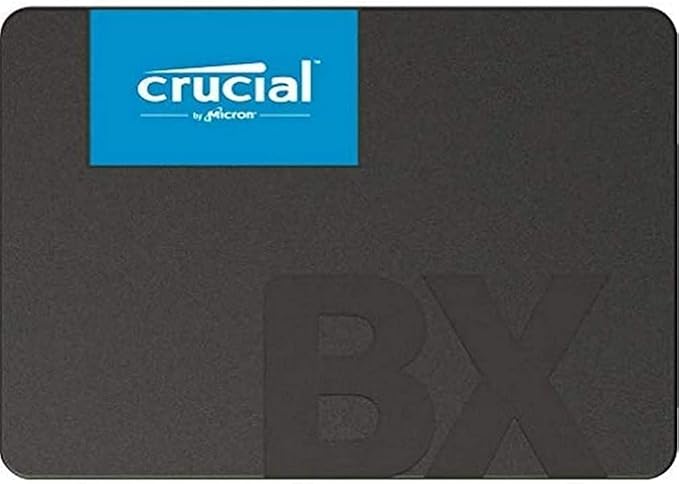
2. Upgrade Your Storage to an SSD
If your laptop still uses a traditional hard disk drive, upgrading to an SSD can dramatically improve responsiveness.
An SSD can make:
- Windows boot faster
- Applications launch faster
- Files open faster
- System navigation feel more responsive
If your laptop supports an NVMe SSD, this can provide very high storage performance.
HDD vs SSD
Traditional HDDs use moving mechanical parts.
SSDs use flash memory and have no moving mechanical components.
This makes SSDs much faster for everyday system responsiveness.
If you're still using an HDD as your main Windows drive, an SSD upgrade should be one of your first considerations.
3. Check How Much Free Storage You Have
Even if you already have an SSD, a nearly full drive can cause problems.
Try to keep a reasonable amount of free storage available.
Remove:
- Temporary files
- Unused applications
- Old downloads
- Duplicate files
- Unnecessary videos
- Old Windows installation files
Windows includes built-in storage management tools that can help you clean unnecessary files.
4. Disable Unnecessary Startup Programs
Many applications automatically start when Windows boots.
This can increase startup time and consume RAM and CPU resources.
Open:
Task Manager → Startup apps
Review the applications that launch automatically.
Disable programs you don't need immediately after Windows starts.
Be careful not to disable important Windows components, security software or hardware utilities unless you know what they do.
5. Remove Unnecessary Applications
Over time, laptops accumulate applications that are no longer used.
Go to:
Settings → Apps → Installed apps
Look for programs you don't use anymore.
Removing unnecessary software can:
- Free storage
- Reduce background processes
- Reduce startup applications
- Make Windows easier to manage
6. Keep Windows Updated
Windows updates can include:
- Security improvements
- Bug fixes
- Driver updates
- Performance improvements
- Compatibility improvements
Make sure Windows is properly updated.
However, if your laptop suddenly becomes slower immediately after a major update, investigate the cause rather than assuming the update is always responsible.
7. Update Your Drivers
Drivers allow Windows to communicate correctly with hardware.
Important drivers include:
- Graphics driver
- Chipset driver
- Wi-Fi driver
- Bluetooth driver
- Storage controller
- Audio driver
For gaming laptops, keeping the graphics driver updated can be particularly important.
When possible, use drivers from the laptop manufacturer's official support page or the official GPU manufacturer's website.
8. Check Laptop Temperatures
Overheating can cause a laptop to reduce its performance.
This is known as thermal throttling.
When temperatures become too high, the processor or GPU may reduce clock speeds to protect the hardware.
Symptoms can include:
- Sudden performance drops
- Loud fans
- Slow gaming performance
- Laptop becoming very hot
- Performance becoming worse after several minutes
If your laptop performs well when cold but becomes slow during longer workloads, temperature should be one of the first things you investigate.
9. Clean the Cooling System
Dust can accumulate inside a laptop over time.
Dust buildup can restrict airflow and reduce cooling performance.
If your laptop is overheating, professional cleaning can help.
The cooling system may need:
- Fan cleaning
- Heatsink cleaning
- Thermal paste replacement
Thermal paste replacement should be performed carefully because improper disassembly can damage the laptop.
10. Don't Block the Air Vents
Laptop cooling vents need airflow.
Avoid using a performance laptop on:
- Beds
- Blankets
- Sofas
- Soft surfaces
These surfaces can block ventilation.
A hard, flat surface is generally better.
A cooling pad may also help in some situations, although it cannot fix a badly clogged internal cooling system.
11. Use the Correct Power Mode
Windows provides different power modes.
If your laptop is configured for maximum battery savings, performance may be reduced.
When you're connected to AC power and need maximum performance, consider using a higher-performance power mode.
The available options depend on your Windows version and laptop manufacturer.
12. Close Unnecessary Background Applications
Applications running in the background consume system resources.
Check Task Manager to see which programs are using:
- CPU
- RAM
- GPU
- Disk
If an application is using significant resources and you don't need it, close it.
Some applications also continue running after you close their main window.
13. Check Your Browser
Modern browsers can consume a significant amount of RAM.
If your laptop becomes slow when you have many browser tabs open:
- Close unused tabs
- Remove unnecessary extensions
- Restart the browser
- Use built-in memory-saving features when available
If you regularly keep dozens of tabs open, upgrading from 8GB to 16GB or more can make a noticeable difference.
14. Remove Malware
Malware can consume CPU, RAM and storage resources.
It can also create security risks.
Use reputable security software and keep Windows security features enabled.
If you notice unusual:
- CPU usage
- Network activity
- Pop-ups
- Unknown applications
- Browser redirects
investigate the system for malware.
15. Optimize Windows Visual Effects
Windows includes visual effects that can consume system resources.
On older laptops, reducing unnecessary visual effects may improve responsiveness.
You can adjust Windows performance settings to prioritize performance.
The improvement is usually more noticeable on older hardware than on modern systems.
16. Upgrade the SSD
If your laptop already has an SSD but it's small or outdated, consider upgrading it.
For most users:
256GB
Suitable for basic use if most files are stored elsewhere.
512GB
A good balance for everyday laptops.
1TB
Excellent for:
- Gaming
- Large applications
- Video editing
- Large media libraries
Before buying an SSD, check whether your laptop supports:
- 2.5-inch SATA SSD
- M.2 SATA
- M.2 NVMe
The physical connector and interface must be compatible.
17. Upgrade the RAM
Before buying RAM, check your laptop's specifications.
You need to know:
- Maximum supported RAM
- RAM type
- Speed
- Number of slots
- Whether memory is soldered
For example, DDR4 and DDR5 are different memory standards and aren't interchangeable.
Some modern laptops also have soldered RAM, meaning it cannot be upgraded.
18. Use an NVMe SSD When Supported
If your laptop supports NVMe storage, it can provide very high sequential and random storage performance.
NVMe drives connect through PCIe and are generally faster than older SATA SSDs.
However, don't expect every application to become dramatically faster simply because the benchmark speed is much higher.
For everyday Windows use, moving from HDD to SSD usually provides a much larger noticeable improvement than upgrading from one good NVMe SSD to a much faster NVMe SSD.
19. Keep Your Laptop's Firmware Updated
Laptop manufacturers occasionally release:
- BIOS updates
- Firmware updates
- Hardware compatibility improvements
- Stability fixes
Check the manufacturer's support page for your exact laptop model.
Do not interrupt a BIOS update once it has started.
20. Check Your Battery Health
An aging battery can affect the overall experience.
Some laptops may reduce performance when operating under certain battery conditions or power modes.
If your laptop shuts down unexpectedly or the battery is severely degraded, battery replacement may be worth considering.
21. Use a Cooling Pad for Gaming Laptops
A cooling pad can improve airflow underneath some gaming laptops.
It may help reduce temperatures depending on the laptop's intake design.
However, it should not be considered a replacement for:
- Internal cleaning
- Proper ventilation
- Thermal maintenance
If temperatures are unusually high, investigate the internal cooling system first.
22. Optimize Your Gaming Laptop
If you're trying to improve gaming performance, focus on:
- GPU driver updates
- RAM
- Cooling
- Power mode
- Background applications
- Game graphics settings
- SSD performance
For gaming, the dedicated GPU is usually the most important performance component.
Upgrading RAM or storage won't turn a weak GPU into a high-end gaming GPU.
23. Lower Game Graphics Settings
If games are running slowly, lowering graphics settings can improve FPS.
Try adjusting:
- Resolution
- Texture quality
- Shadow quality
- Ray tracing
- Ambient occlusion
- Effects quality
DLSS or other upscaling technologies can also help on supported GPUs and games.
24. When Should You Replace Your Laptop?
Sometimes upgrading isn't enough.
Consider replacing the laptop if:
- The CPU is too old
- The GPU is too weak
- RAM cannot be upgraded
- Storage cannot be upgraded
- The motherboard has a serious problem
- The laptop has major physical damage
- Repair costs approach the price of a better laptop
If your laptop is several generations old, buying a newer used business laptop can sometimes provide better value than upgrading an outdated machine.
RAM vs SSD: Which Upgrade Should You Choose?
If your laptop has an HDD:
SSD upgrade → usually the first priority.
If your laptop has an SSD but only 8GB RAM:
RAM upgrade → potentially more important for multitasking.
If you already have:
16GB RAM + NVMe SSD
then performance improvements may depend more on the CPU, GPU and cooling system.
Quick Laptop Speed Upgrade Guide
| Problem | Recommended Solution |
|---|---|
| Slow boot | SSD upgrade |
| Slow application loading | SSD upgrade |
| Too many browser tabs | RAM upgrade |
| System freezes during multitasking | RAM upgrade |
| Laptop gets very hot | Clean cooling system |
| FPS drops | Check GPU and temperatures |
| Too many startup programs | Disable unnecessary startup apps |
| Storage almost full | Upgrade SSD |
| Old HDD | Replace with SSD |
| Old gaming GPU | Consider a newer laptop |
Common Mistakes
Installing More RAM Without Checking Compatibility
Not every RAM module works with every laptop.
Buying the Wrong SSD
M.2 does not automatically mean NVMe.
Check the exact storage interface your laptop supports.
Ignoring Cooling
More RAM or a faster SSD won't solve thermal throttling.
Installing Random Driver Software
Avoid unknown driver-update programs.
Use reliable official sources whenever possible.
Expecting Software Optimization to Fix Old Hardware
Software tweaks cannot replace significantly outdated hardware.
Final Verdict
Making a laptop faster doesn't always require buying a new machine.
For many laptops, the biggest improvements come from:
SSD + RAM + Cooling + Windows Optimization
If your laptop still uses an HDD, replacing it with an SSD can provide a major improvement in everyday responsiveness.
If you already have an SSD but only 8GB of RAM, upgrading to 16GB can improve multitasking.
And if your laptop becomes slower during long workloads, check temperatures and cooling before spending money on upgrades.
Before buying any component, always check your laptop's exact model and supported hardware.
Looking for a laptop upgrade or a faster laptop in the UAE? Explore Gaming Store UAE for laptops, SSDs, RAM and other computer hardware.